Put your logo on the PDFs
Upload the company mark and it replaces Mängda at the top of reports and quotes.
- 1
Get the file ready
The logo has to be PNG or JPG and at most 2 MB. If you only have an SVG you have to export it as a PNG first, because an SVG cannot be pushed into a PDF.
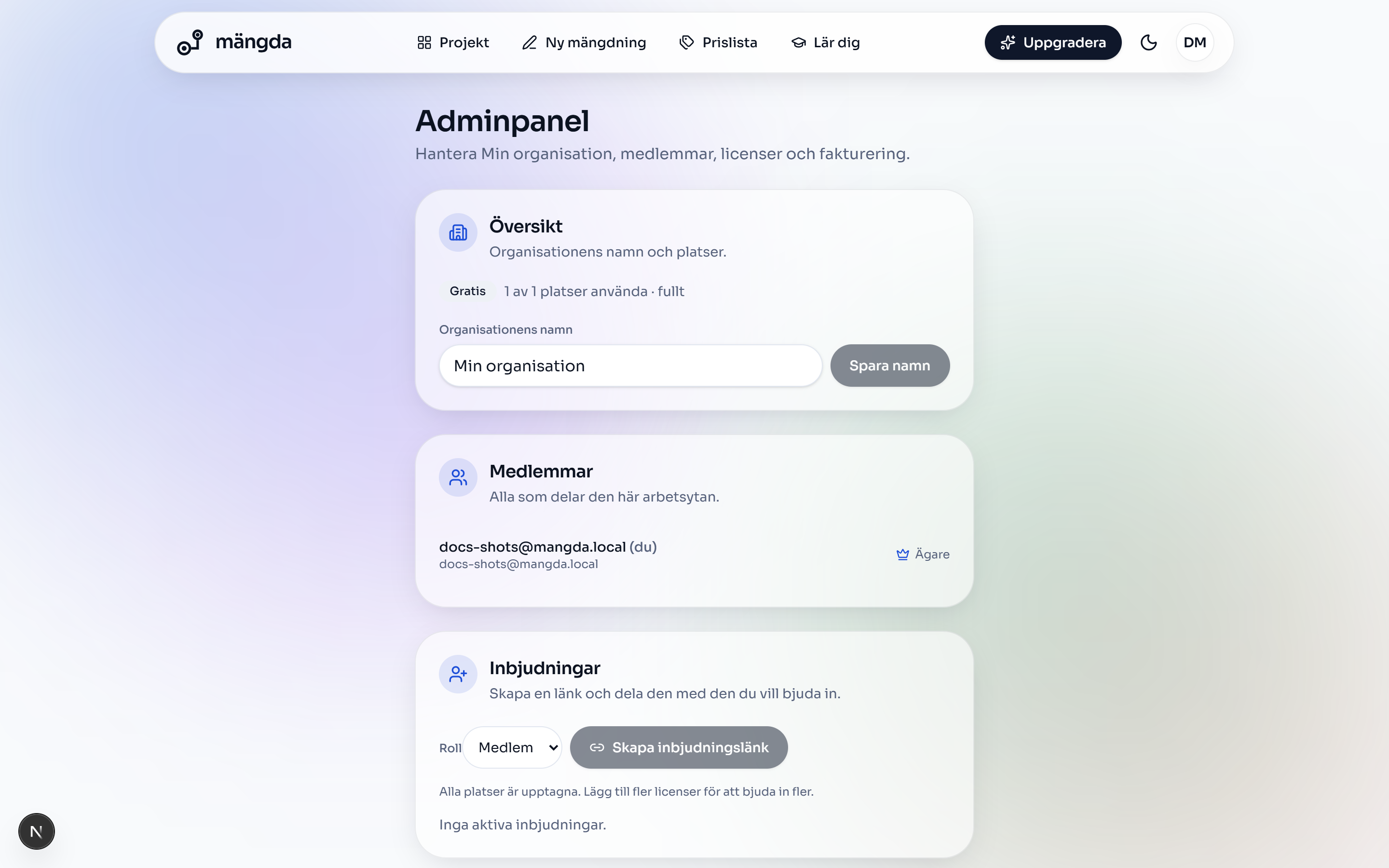
The workspace: members, invitations and your logo. Worth knowing. The mark is scaled into its box with its proportions kept, so it never comes out stretched. A PNG with a transparent background looks best on the white paper.
- 2
Open Workspace settings
Click the account button with your initials at the top right and pick Workspace settings.
- 3
Go to the box Logo on PDFs
Click Appearance in the menu on the left. The box Logo on PDFs sits there, and the white plate shows what stands at the top of your PDFs right now.
- 4
Upload the logo
Click Upload logo and pick the file. If there is a logo up already the button is called Change logo.
Worth knowing. The wrong file type is stopped with That file type is not supported. Upload the logo as a PNG or a JPG. A file that is too big is stopped with That logo is too large. Choose a file of at most 2 MB.
- 5
Check the white plate
The whole mark should show in the plate. If it looks cropped or blurred, upload a bigger PNG.
- 6
Export a PDF and have a look
Open a project, click Export and pick PDF report. Your logo should stand where Mängda stood before.
Worth knowing. The logo applies to the whole workspace, both the PDF report and the quote, for everybody on the team.
- 7
Remove the logo again
Click Remove in the same box. Then Mängda stands at the top of your PDFs again.
Worth knowing. Your own logo is included on every paid plan. On Gratis the button cannot be clicked, and a logo that is already up is not used, so Mängda stays at the top.
Next steps
- Invite colleagues to the workspaceShare projects and the price list with the team, and decide who gets to change what.5 min
- Create a quote from the quantitiesLink the quantity list to your price list and export a finished quote.6 min
- Pick a plan, and what Gratis coversSee what the free period gives you, compare the plans and switch without guessing at the price.4 min
Do the steps on a real drawing
Open the tool and follow the walkthrough on the sample drawing that is already there. No login needed.
Open the toolStuck on a step? Get in touch and we will gladly look at your drawing.