Share the project with the customer
Send a secret link where the client sees the drawing and the quantities, with no account.
- 1
Save the project first
Click Save project in the toolbar and give it a name. The button Share only turns up once the project is saved.
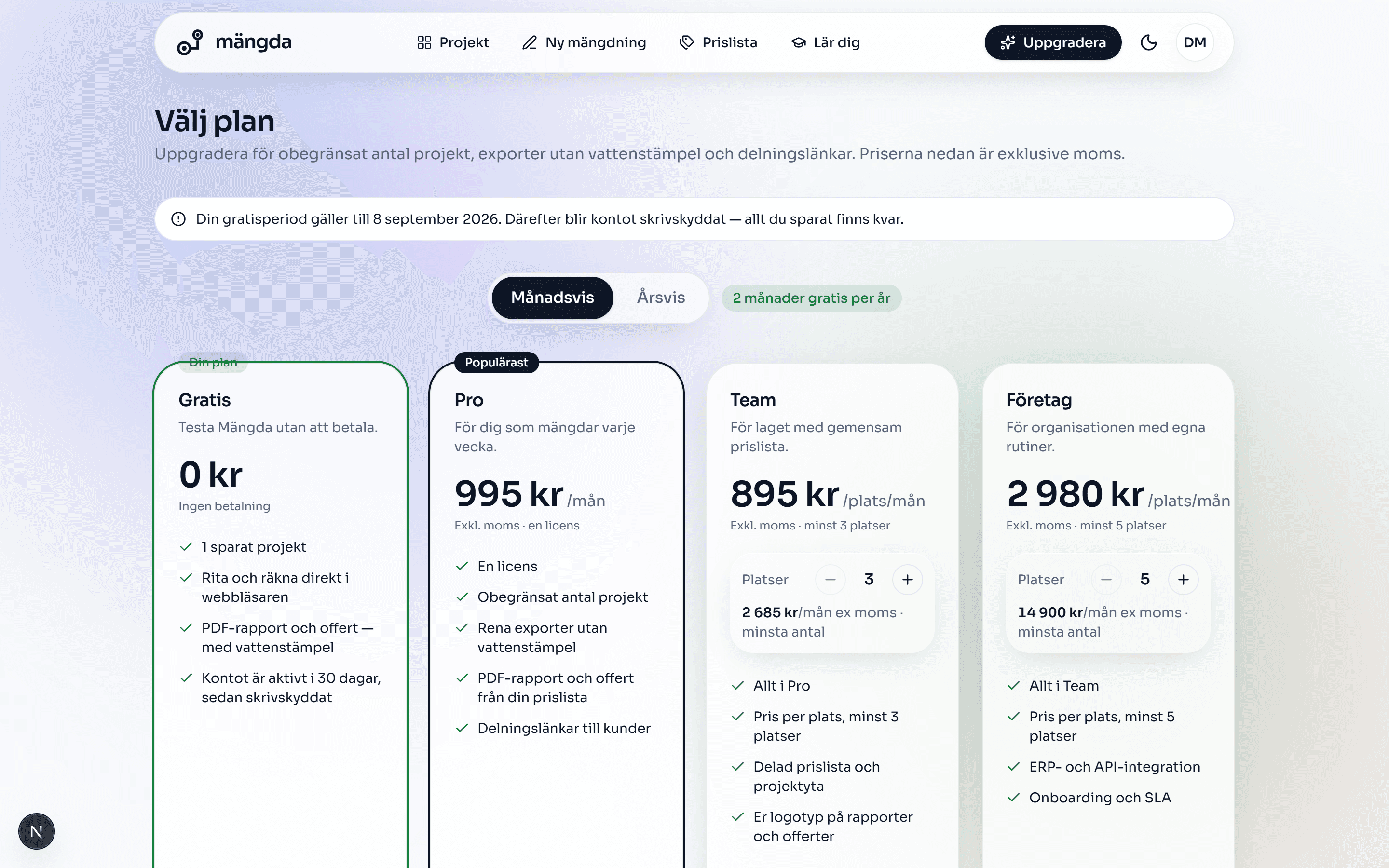
Choose a plan: the seat picker already sits at the minimum for Team and Enterprise. - 2
Open Share
Click Share in the toolbar. From the project list you reach the same dialogue through the three-dot button on the project card and the row Share.
- 3
Click Create share link
Mängda creates a secret address to the project. It cannot be guessed at.
Worth knowing. On Gratis the button is stopped with the message Share links are part of Pro. Links you have already managed to create carry on working.
- 4
Copy the link
Click Copy next to the address. Paste it into the email or the text message to the client.
- 5
See for yourself what the customer gets
Click Open the link in a new tab. The page shows the badge Read only, the drawing and the quantity list with the waste column.
Worth knowing. Whoever opens the link cannot change, save or export anything, and needs no account. The page is also blocked to search engines.
- 6
Switch the link off when the job is done
Open Share again, click Switch the link off and confirm with Yes, switch it off.
Worth knowing. The link stops working immediately for everybody who has been given it. Create a new link later and it becomes a new address, and the old one does not come back to life.
Next steps
Do the steps on a real drawing
Open the tool and follow the walkthrough on the sample drawing that is already there. No login needed.
Open the toolStuck on a step? Get in touch and we will gladly look at your drawing.